User Roles
The system provides a flexible user access control mechanism through roles. You can use predefined base roles or create your own custom roles based on them. Additionally, you can configure permissions at the attribute group level within the catalog.
Types of Roles
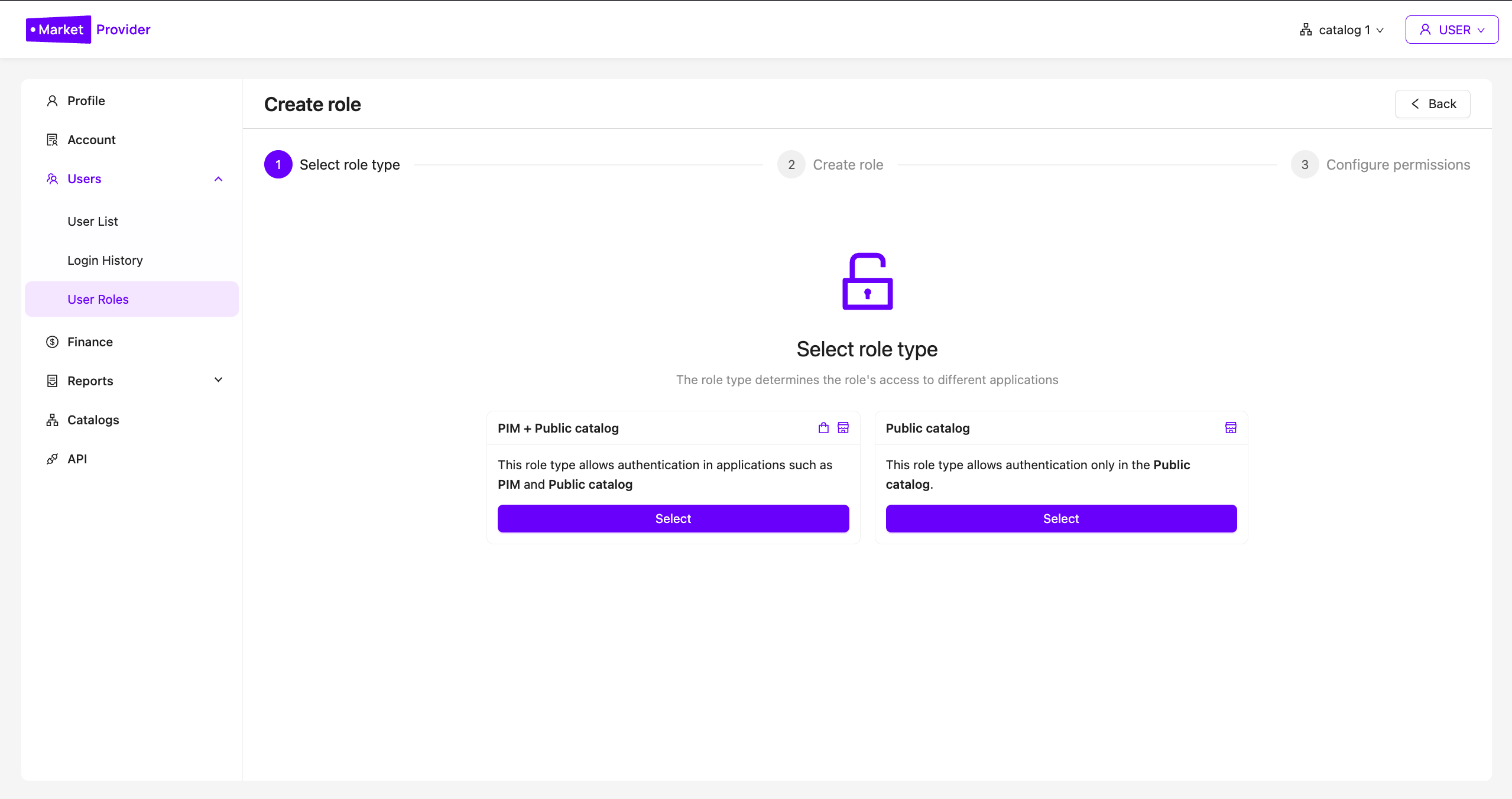
When creating a role, you must define its type:
-
PIM — grants access to the core content management modules
-
Public Catalog — grants access to the public catalog
Base and Custom Roles
-
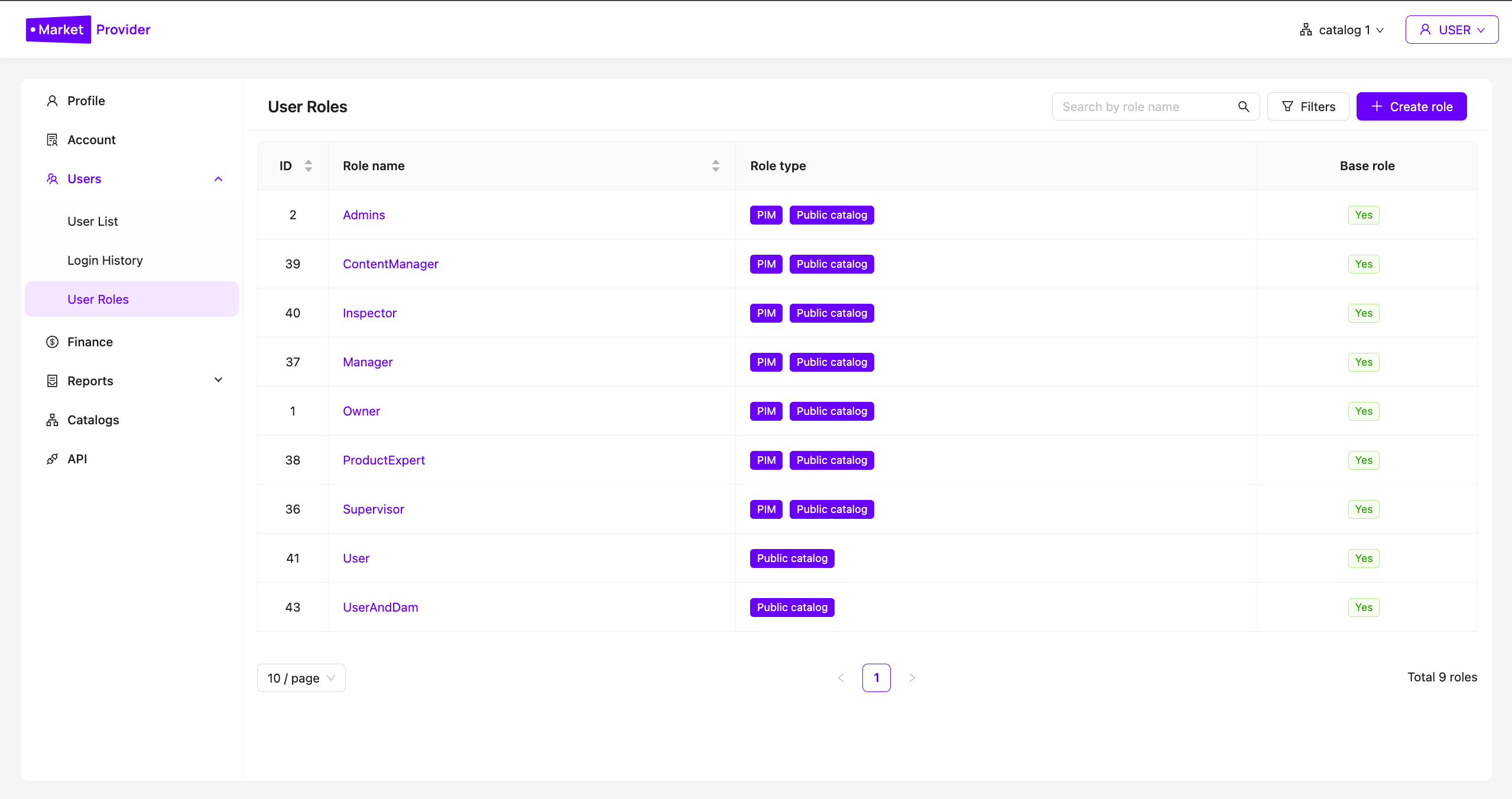
Base role — a predefined configuration suitable for standard use cases.
-
Custom role — created manually or based on a base role, allowing you to flexibly grant or restrict access to specific functions.
For example, the base role Admins provides full access to all system features.
Catalog
-
Create, edit, delete, and view attributes
-
Manage dictionaries, groups, categories, and information models
-
Manage product variants (SPU), including creation and viewing
-
Create, edit, and delete tags
-
Use ChatGPT
Products
-
Create, edit, and delete product cards (SKU)
-
Import and export products
-
Edit and view product models (SPU)
-
Manage card statuses (Moderation, In Progress, Ready, Archived, etc.)
-
Upload images and files
Account
-
Create and edit users and companies
-
Manage API tokens
-
Use the role constructor
-
View and edit account information
-
Manage access to companies
-
Generate reports, view plans and roles
-
Contact technical support
Public Catalog
-
View products
-
Export products
-
Create public DAM links
Requests
-
Create and edit requests
-
Change request categories and statuses
-
Create products from requests
-
Export requests
Channels
-
Create, edit, and delete channels
-
View and launch channels
DAM
-
Access DAM
-
Edit, create, and delete DAM assets

Attribute Group-Level Access Control
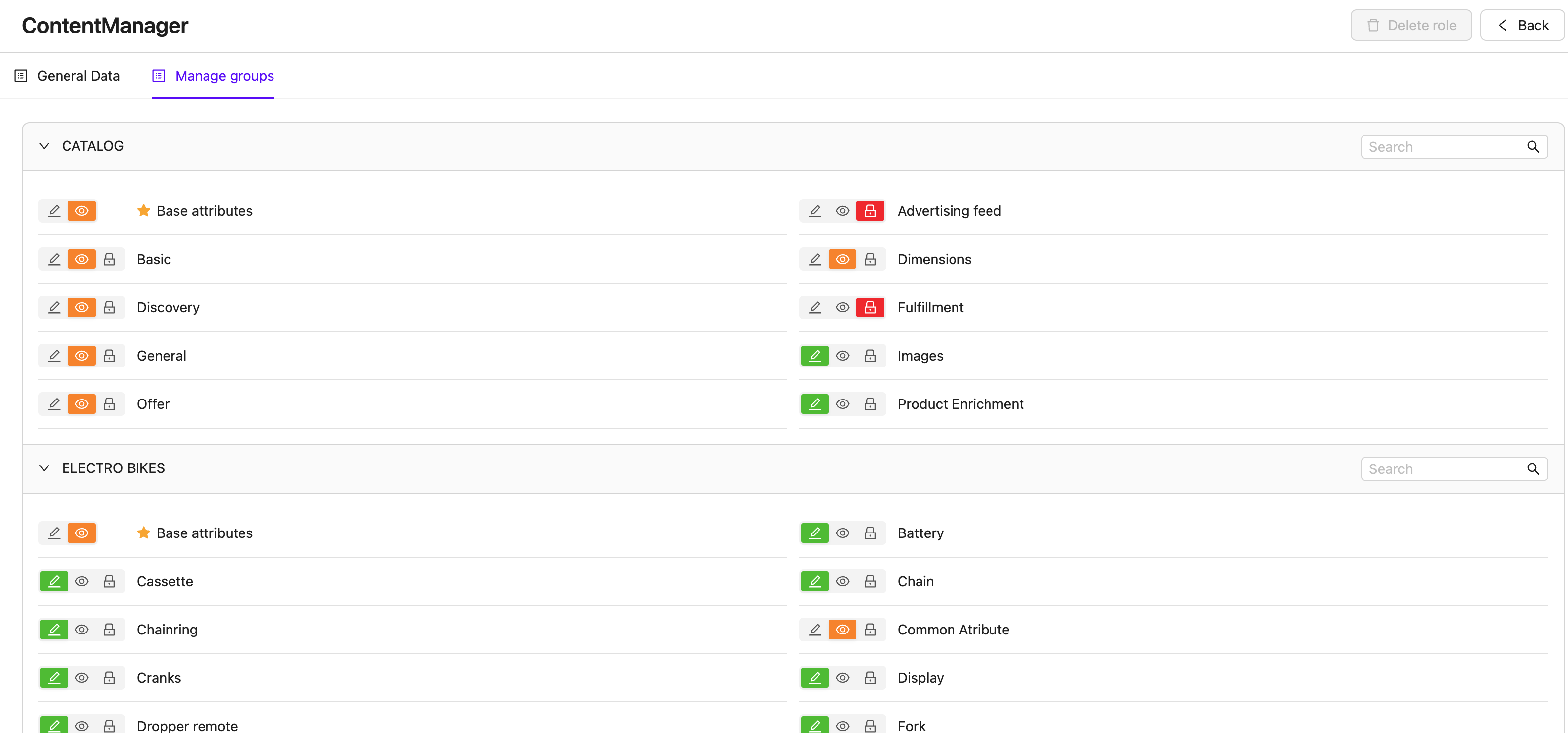
You can additionally manage permissions for individual attribute groups in the catalog. This allows you to control visibility and editing rights for specific sections based on user roles.
How to Configure Access to Attribute Groups
-
Open the User Roles section
-
Select an existing role or create a new one
-
Go to the Group Management tab
-
For each attribute group, choose one of the following access levels:
-
Full access — view and edit
-
View only — read-only access
-
No access — the group will be hidden
-
Usage Examples
-
Hide internal product specifications from designers
-
Grant read-only access to the “Factory Data” group
-
Allow marketers access only to the “SEO and Descriptions” group
Managing permissions through roles and attribute group-level access allows you to effectively organize team workflows and protect sensitive data. Use this functionality to adapt the PIM system to your organization’s specific needs.
Do you have any questions?
MarketProvider experts are ready to answer any of your question and help you